
Recently, I was nerd sniped by a YouTube short about a Reddit post that showed a rotating cursor. I thought it was a neat idea and wanted to see if I could implement it myself. So, I spent a weekend creating a cursor that points to the direction your mouse is moving. Little projects like this allow me to test my skills and learn new things. Hopefully, you will find this project interesting and maybe even learn something new.
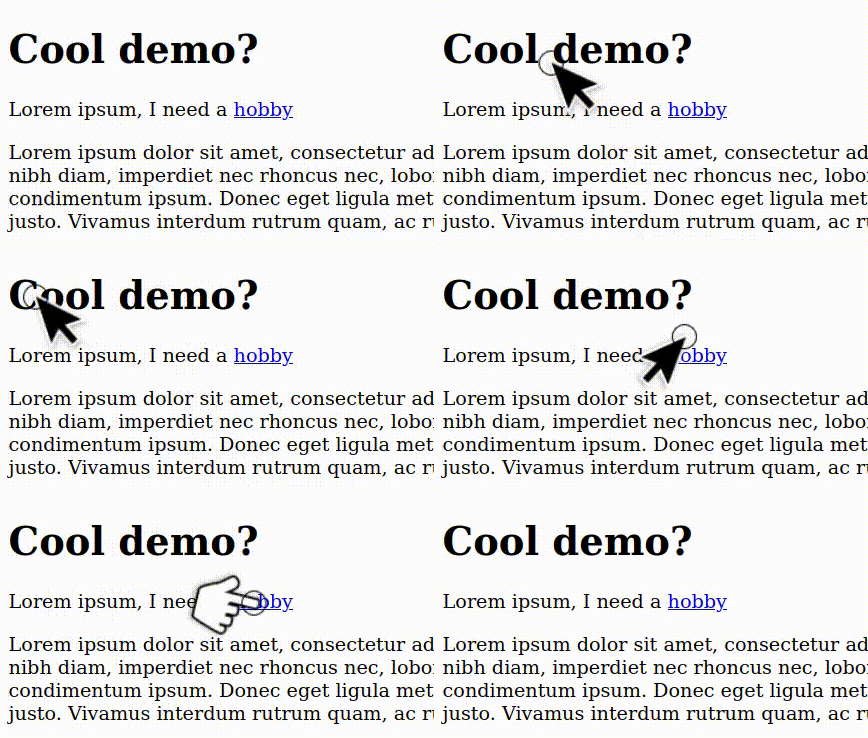
Over a long weekend, I was doom-scrolling and stumbled upon the following Reddit post:
Cursor That Actually Points to the Direction You Are Travelling
byu/DarwinEnergy inbadUIbattles
Usually, these posts get a quick chuckle, that small bit of dopamine, and then I move on with my life. However, this one stuck with me. I thought it was a neat idea and wanted to see if I could implement something similar. Something about it felt like it was deceptively simple, where the implementation would be more challenging than it appeared. But, I couldn’t quite put my finger on why, so… I dug in!
Hello, World!
First, let’s get some cursor events going.
addEventListener('mousemove', event => {
    console.log({ x: event.clientX, y: event.clientY })
})
Previous Position
Looking at the logs, this gives us x-y coordinates of the mouse at a given point in time.
To be able to determine the direction the cursor is moving, we need to store the previous position prev and compare it with the current position next.
For now, let’s just log the previous and next positions.
let prev = null

addEventListener('mousemove', event => {
    let next = { x: event.clientX, y: event.clientY }
    if (prev)
        console.log({ prev, next })
    prev = next
})
Delta
Using the previous position, we can calculate the direction the cursor is moving (or at least the direction) between the last two events.
We can do this by subtracting the previous position from the current position, giving us a dx and a dy between each mousemove event.
let prev = null

addEventListener('mousemove', event => {
    let next = { x: event.clientX, y: event.clientY }
    if (!prev) {
        prev = next
        return
    }

    console.log({ dx: next.x - prev.x, dy: next.y - prev.y })
    prev = next
})
Debouncing
Looking closely at the logs, we can see that there can be several mousemove events fired per frame, which can lead to really poor rendering performance.
Since we are rendering the user’s cursor, we want to be as snappy as possible.
So, we’ll use the age old trick of remembering the data in the event and processing it in an animation frame.
let prev = null
let next = null

addEventListener('mousemove', event => {
    next = { x: event.clientX, y: event.clientY }
    requestAnimationFrame( draw )
})

function draw() {
    // guard clause: first frame won't have a previous position
    if (!prev) {
        prev = next
        return
    }

    console.log({ dx: next.x - prev.x, dy: next.y - prev.y })
    prev = next
}
Now we have the cursor’s position and direction information. Let’s momentarily switch gears and talk about rendering the cursor.
Canvas
We’ll be rendering the cursor using a canvas element, so let’s set that up.
First, we’ll need something to render into, a Canvas of sorts.
We’ll create a canvas element, set its style to be fixed (so it doesn’t scroll with any vertical page height), size it to fill the entire window, and append it to the body.
This gets us a canvas that fills the entire window and is always on top of everything else.
Also, by having pointerEvents: 'none', we can still interact with the page as if the canvas wasn’t there.
var canvas, ctx

function init() {
    canvas = document.createElement('canvas')
    Object.assign(canvas.style, {
        position: 'fixed',
        top: 0,
        left: 0,
        width: '100%',
        height: '100%',
        pointerEvents: 'none',
    })
    document.body.append(canvas)

    let rect = canvas.getBoundingClientRect()
    canvas.height = rect.height
    canvas.width = rect.width

    ctx = canvas.getContext('2d')
}

init()
Resizing
We’ll also need to resize the canvas to match the window size, even after being resized. So, we’ll add a resize event listener to handle that and move out the canvas sizing logic to a separate function.
var canvas, ctx

function init() {
    canvas = document.createElement('canvas')
    Object.assign(canvas.style, {
        position: 'fixed',
        top: 0,
        left: 0,
        width: '100%',
        height: '100%',
        pointerEvents: 'none',
    })
    document.body.append(canvas)
    resize()
    ctx = canvas.getContext('2d')
}

function resize() {
	let rect = canvas.getBoundingClientRect()
	canvas.height = rect.height
	canvas.width = rect.width
}

window.addEventListener('resize', resize)
init()
Cursors
I’m no graphic designer and this is supposed to be a quick project, so borrowing the cursor images from the chromium source code seems like a good starting point. If this site ever chooses to monetize, I’ll have to review the license agreements, but for kicking prototypes around, it should be fine. I’ll start with the big pointers so it’s easier to see and debug, but I’ll probably switch to the smaller ones for the final version. We’ll get to what all this extra data is eventually, but for now, you can ignore it.
| My Name | Default | Pointer |
|---|---|---|
| Chrome’s Name | hand2_bit.png |
left_ptr_big.png |
| Icon |  |
 |
| Size | x, y | x, y |
| Hotspot | 10, 10 | 10, 26 |
| Rotation (radians) | 5π/8 | π/2 |


Draw Cursor
Now that we have a canvas and a cursor image, let’s draw the cursor under the mouse.
We’ll use the next position to draw the cursor at the mouse’s location.
We’ll also need to translate the canvas to the next position so that the cursor is drawn at the correct location.
Finally, we’ll draw the cursor image at the translated position.
Note the -26 and -10 in the drawImage call are the hotspot offsets for the cursor image.
let cursor = new Image()
cursor.src = 'cursor/pointer.png'
cursor.onload = drawCursor

function drawCursor() {
    ctx.clearRect( 0, 0, canvas.width, canvas.height )
    ctx.save()
    ctx.translate( next.x, next.y )
    ctx.drawImage( cursor, 0, 0, cursor.width, cursor.height, -26, -10, cursor.width, cursor.height )
    ctx.restore()
}
Rotate Cursor
Sweet, that’s the cursor drawn at the mouse’s location, now let’s rotate it! We’ll need to rotate the canvas before drawing the cursor image to match the direction the cursor is moving. Additionally, we’ll need to get the cursor’s images rotated to point to a normalized direction. While this is easy for ya’ll to look in the lovely table above, I did it via the age old guess-and-check method.
Luckily, for getting the angle between the two points, we can use the Math.atan2 function.
Notice the added Math.PI/2 in the rotate method, this is to account for the cursor image being rotated.
function drawCursor() {
    ctx.clearRect( 0, 0, canvas.width, canvas.height )
    let angle = Math.atan2( next.y - prev.y, next.x - prev.x )
    ctx.save()
    ctx.translate( next.x, next.y )
    ctx.rotate( angle + Math.PI/2 )
    ctx.drawImage( cursor, 0, 0, cursor.width, cursor.height, -26, -10, cursor.width, cursor.height )
    ctx.restore()
}
At this point, we have a cursor that follows the mouse and rotates to point in the direction the mouse is moving. But, this is where all the little bugs start to creep in. The little assumptions that you made along the way start to show their ugly heads. Or more accurately, the weird nuances that developers have to deal with when working with the real world.
Discrete Pixels
All the math we’ve done so far has been in continuous space, but we’re working with discrete pixels.
Which means that that as the cursor moves slowly across the screen, the angle between the two points might flip between 0 and 90 degrees (or 0 and π/2 radians).
This is because as the cursor moves, the dx and dy values are very close to 0, which can cause the atan2 function to flip between 0 and π/2.
For example, pretend the following table is a set of pixels the cursor is moving across from top left, to bottom right.
| A | B | _ |
|---|---|---|
| _ | C | D |
As the cursor moves from A to D, there would be 3 separate events: A->B, B->C, and C->D.
Converting those events into movements would be: right, down and right.
Which, if a cursor was being drawn, would look pretty janky as it flip-flops between the two angles (90 degrees apart).
To solve this, we can average the previous angle with the current angle using a weighted moving average.
This is a strategy used in robotics to smooth rapid changing sensor data and is simple enough to implement here.
By using a smoothing percentage, we can control how much the previous angle influences the current angle.
cleanValue = lastValue  * smoothing
cleanValue += dirtyValue * (1 - smoothing)
// use cleanValue
lastValue = cleanValue
This mostly worked, but I started to notice when moving to the left, the cursor would flip upside down. This is where one of the larger learning components of this project came in: the circular mean.
Circular Mean
While that math is all well and good, it’s in our use case, we can’t do it simply based on the angle. That’s because the angle is a circular value, meaning that 0 and 2π are the same angle. Finding an average (weighted or not) between two points gets tricky when you have to consider the circular nature of the angle. This phenomenon is known as the circular mean, and there are a few ways to calculate it.
While working on the code, I found a few StackOverflow posts that explained how to do it by converting the angles back into an x-y coordinate space (vectors). Then, we can use the weighted average to calculate the new vector and convert it back into an angle. This is a bit more complicated than the simple moving average, but it’s necessary to handle the circular nature of the angle.
function movingAverage(angle, prev, smoothing) {
	// create unit vectors + add their components + calculate the smoothed angle
	let nx = Math.cos( angle ) * smoothing
	let ny = Math.sin( angle ) * smoothing
	nx += Math.cos( prev.a ) * (1 - smoothing)
	ny += Math.sin( prev.a ) * (1 - smoothing)
	return Math.atan2( ny, nx )
}
This was enough to get things working, but looking back, there might be a less complicated way to do this.
I’ll have to revisit this in the future, or leave it as an exercise for the reader.
My retrospective mind is thinking something with min and max by adding/subtracting 2π, but… IDK.
If you figure out a better way, let me know!
Lever Forces
Getting the circular mean right was huge, but I was still noticing some weird behavior.
I was having a difficult time picking a reasonable smoothing factor.
When the previous position was weighted highly, the cursor had a hard time changing directions if moving quickly.
But if the next position was weighted highly, the cursor would jitter because of the discreet pixel problem.
Leaving my computer for a bit, I started to think about the problem in a different way. I realized that the cursor itself likely had weight and inertia, and the length of the detected movement was the force applied to the cursor. This led me to think about the cursor as a lever, where the mouse was the fulcrum and the cursor was the weight. (Kinda a weird analogy, but hey… shower thoughts… got to love them.) This way, longer movements would have more force and move the cursor more, while shorter movements would have less force and move the cursor less.
After some trial and error, I found the following calculation to work well enough.
let hypot = Math.hypot( dy, dx )
let strength = Math.min( hypot / 20, 1 ) // cap ratio to 1
Loading Cursors
At this point, I was started to see some progress, and my mind started to wander. I remembered that as cursors move around the screen, they change from one to another, the pointer becomes a hand, the hand becomes a pointer, etc. So, I knew I’d have to either copy/paste all that code above for each cursor or create a function to help out.
function newCursor(name, dx, dy, dt) {
	return new Promise((resolve, reject) => {
		let img = new Image()
		img.src = `${name}.png`
		let draw = ctx => {
			ctx.rotate( dt )
			ctx.drawImage(
				img, 0, 0, img.width, img.height, // src
				-dy, -dx, img.width, img.height,  // dst
			)
		}
		img.onload = e => resolve( draw )
		img.onerror = e => reject( e )
	})
}
Active Cursor
Alright, the last part of the puzzle was to switch between the cursors.
This would have been easy if the user’s cursor was still visible: window.getComputedStyle(event.target)['cursor'].
But, since we’re drawing our own cursor, and the user’s cursor is hidden, we’ll have to do some extra work.
I was running out of time with my weekend at this point (and all out of showers for that weekend), so I decided to hack something together. Here’s the basic idea:
- initialize a
lookupmapping of elements => cursors for that element - on
mousemove, remember the element under the cursor - on
draw, if the element is in thelookupmap, draw that cursor (otherwise, continue) - temporarily, reset the css to enable the user’s real cursor to be drawn, use the
getComputedStyleline from above, re-hide the users cursor, and memoize the cursor for that element inlookup
Not very elegant, and would crash have a massively growing map on websites with a lot of elements, but it worked for the demo. If anyone has a better solution, I’m all ears!
let next = null
let lookup = {}

function mouseMove( event ) {
    next = { x: event.clientX, y: event.clientY, t: event.target } // remember target
    requestAnimationFrame( draw )
}

function getCursorDrawer(target) {

	// short circuit for previously seen elements
	if ( lookup.hasOwnProperty( next.t ) ) {
		return cursors[ lookup[ next.t ] ]
	}

	// determine the cursor for a given element
	// WARNING: getComputedStyle won't work once the cursor is none
	document.documentElement.style.cssText = 'cursor: default !important'
	let style = window.getComputedStyle(next.t)['cursor']
	document.documentElement.style.cssText = 'cursor: none !important'

	// do we need to do per-element overrides?
	if ( window.getComputedStyle(next.t)['cursor'] != 'none' ) {
		next.t.style.cssText = `cursor: none !important`
	}

	if (!cursors.hasOwnProperty(style)) {
		console.error(`unknown cursor type: ${style}`)
		style = 'default'
	}
	lookup[ next.t ] = style // remember computed styles
	return cursors[ style ]  // getting draw function
}
Conclusion
While this project was a fun little weekend project, it was also a great learning experience. I got to play around with a math/physics degree that I don’t usually use, and I got to see how it can be applied in a real-world scenario.
Now, a full sample page can be found hosted on this website and maybe… if I’m feeling adventurous… I’ll host the cursors on this page as well.